 XMEye Docs
Device Settings
Configure a connected XMEye device from the live-view menu: encode, recording, alarm, image, storage, password, download and device info.
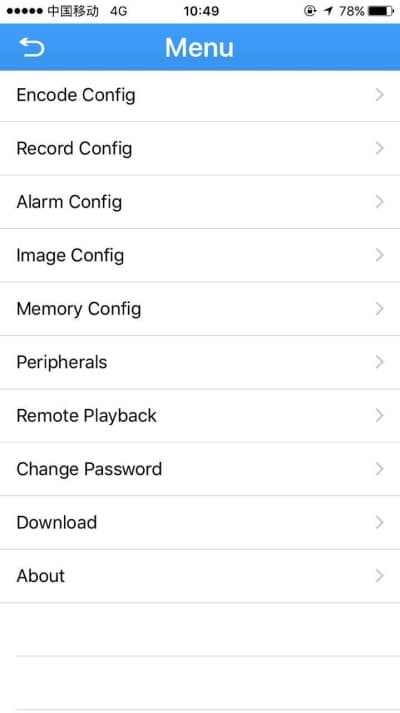
The Menu gives you access to the settings of the device you are currently viewing. From the Live View screen, tap the menu button to open it.
The menu contains the following items: Encode Config, Record Config, Alarm Config, Image Config, Memory Config, Peripherals, Remote Playback, Change Password, Download and About.
Each configuration page has a Save button in the top-right corner. After changing any setting, tap Save to apply it to the device.
Encode Config
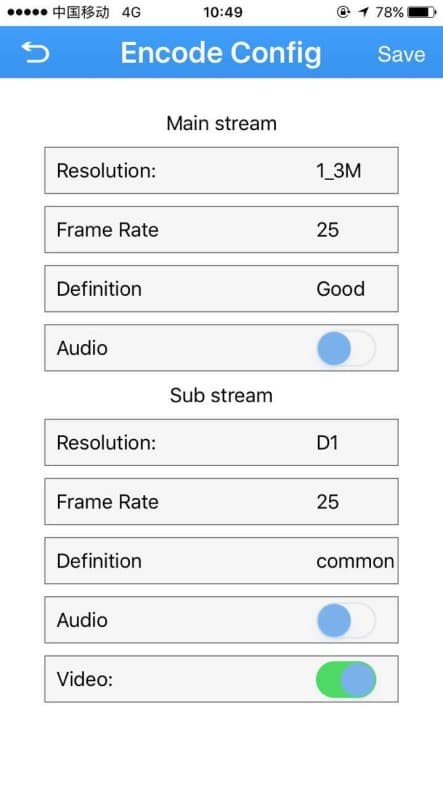
Select Encode Config to modify the resolution, frame rate, definition, audio and video parameters of the device. Settings are available for both the Main stream and the Sub stream.
Record Config
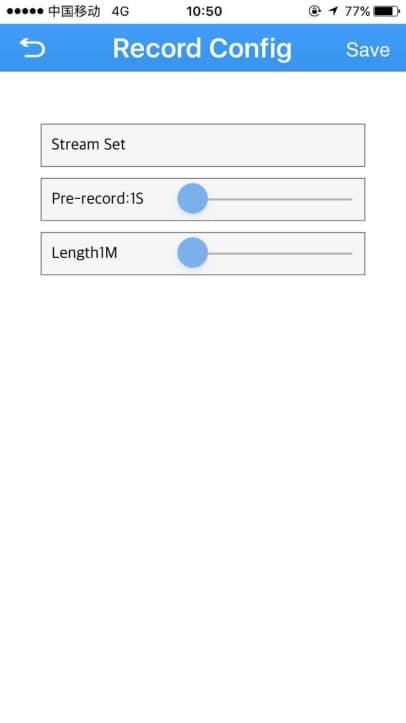
Select Record Config to modify the recording length, pre-record time and the stream / cloud-storage setting used for recording.
Alarm Config
Select Alarm Config to manage the device's alarm options. When an alarm is triggered on the device, the mobile client receives the alarm message.
Each alarm type (such as Motion Detection and Video Blind) can be expanded to switch on Alarm, Alarm record, Alarm snapshot and Send To Phone. You can also enable the Video Loss Alarm and configure the External device alarm.
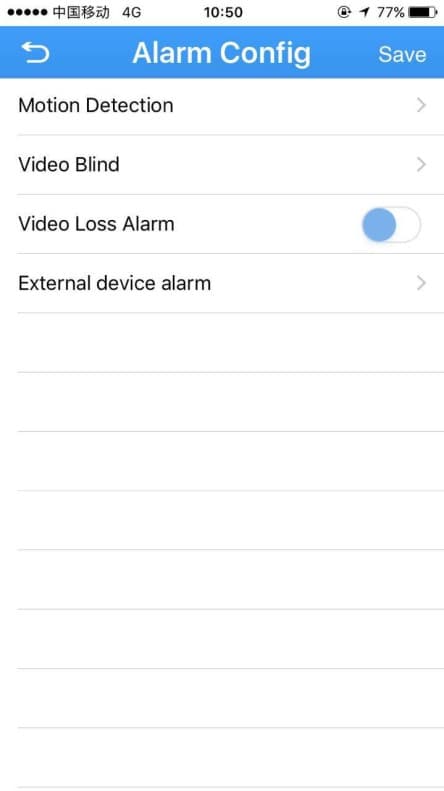
Image Config
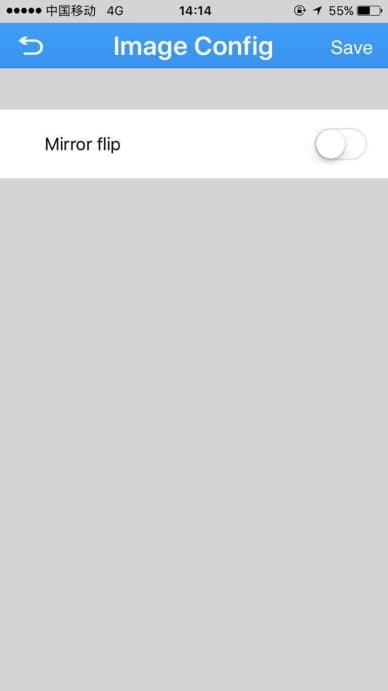
Select Image Config and turn on Mirror flip to flip the camera image.
Memory Config
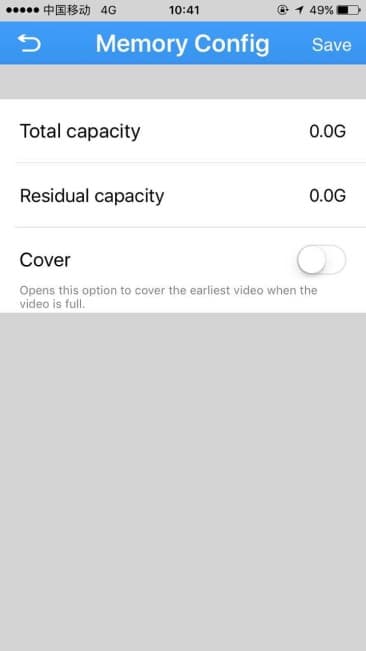
Select Memory Config to view the device's Total capacity and Residual capacity. Turn on Cover to overwrite the earliest recordings when the storage is full.
Change Password
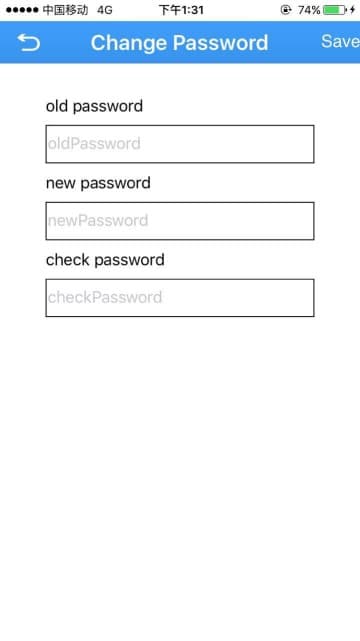
Select Change Password to change the device password. Enter the old password, then enter and confirm the new password.
Remote Playback
Select Remote Playback to review footage stored on the device. See the Remote Playback page for full details.
Download
Use Download to save recorded footage to your phone. You can download either by file or by time.
By file
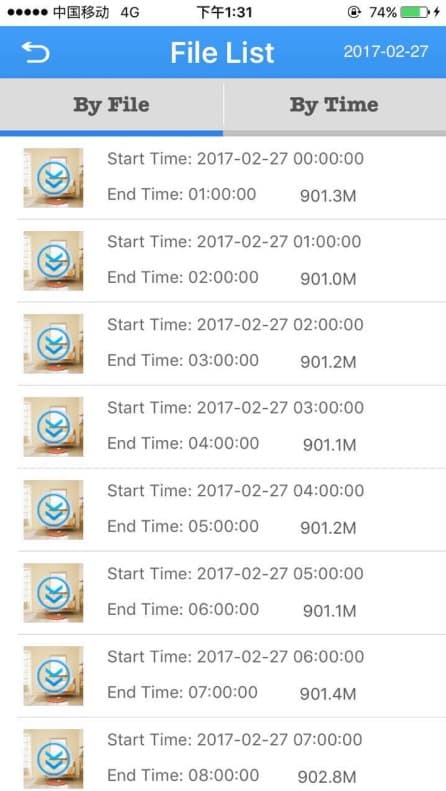
Open the By File tab to see a list of recorded files with their start time, end time and size. Tap the download button  next to a file to start the download. While downloading, the button shows a progress icon
  .
.
By time
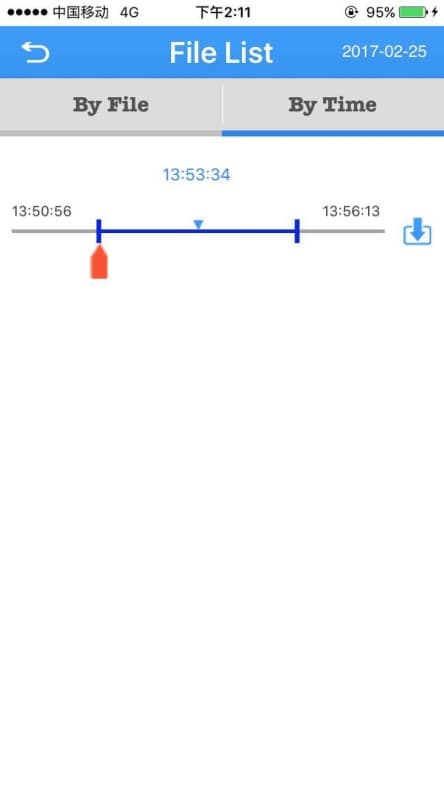
Open the By Time tab, select a time range on the timeline, then tap download to save that period.
About
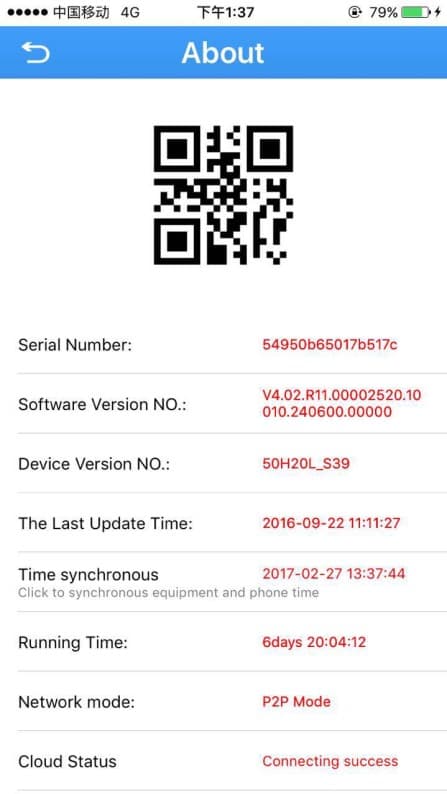
Select About to view device information:
- Device QR code — tap the QR code to enlarge it.
- Serial Number
- Software Version NO.
- Device Version NO.
- The Last Update Time
- Time synchronous — tap to synchronize the device time with your phone.
- Running Time
- Network mode
- Cloud Status
- Device update