 XMEye Docs
Remote Playback
Search and play back video recorded on your device's hard disk remotely with XMEye, with play/pause, audio, snapshot, and record controls.
The XMEye mobile client can connect to your device remotely and play back video saved on the device's hard disk. Pick the date and time you want to review using the time selector in the top-right corner, start searching, and any matching footage plays back on screen.
Searching and playing back recordings
Open Remote Playback
Open remote playback for the channel you want to review. The screen header reads Remote Playback.
Select a date and time
Tap the time shown in the top-right corner to choose the date and time you want to review, then start the search. The client collects the matching video from the device's hard-disk storage.
Play back the footage
Recordings found for the selected time begin playing back along the timeline shown at the bottom of the screen.
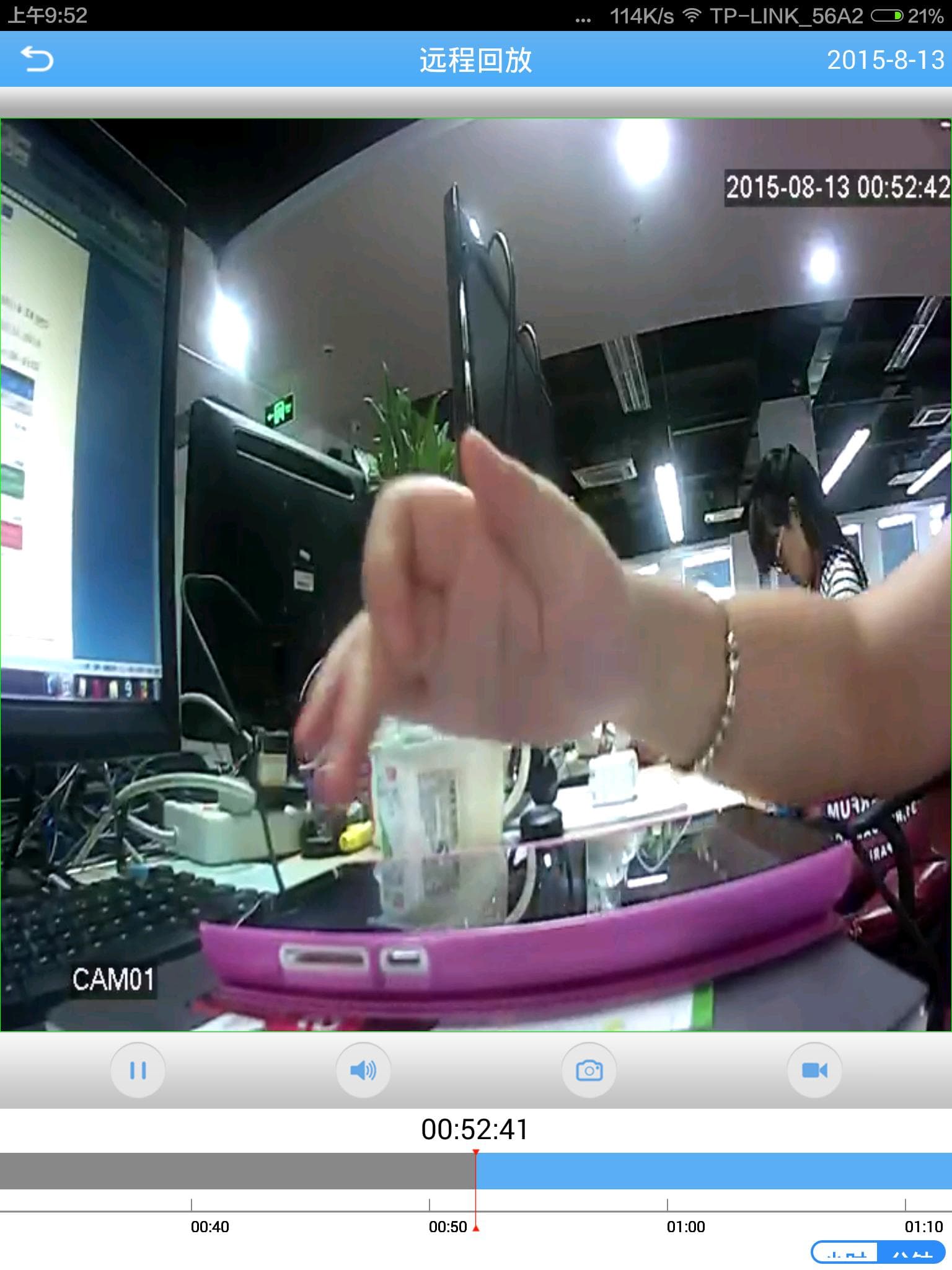
Playback controls
During remote playback, the control bar below the video lets you:
| Control | Action |
|---|---|
| Play / Pause | Pause the footage or resume playback. |
| Audio | Turn the recorded audio on or off. |
| Snapshot | Capture a still image from the playback. |
| Record | Save a clip of the footage being played back. |
Recordings must exist
Playback only works if recordings exist for the time you selected. If there is no video for that period, the search returns nothing.
To talk through the device while viewing live video, see Audio Intercom.