 XMEye Docs
Main Menu
Open the XMEye main menu from live view to access Device List, Local Record, Local Album, Alarm Push, Cloud Storage, and Local Settings.
From the Live View page, tap the menu button  to open the Main Menu. The items shown depend on how you logged in.
Menu items by login type
The available menu entries differ between cloud login and local/direct login.
When you sign in with a cloud account, the Main Menu contains Device List, Local Record, Local Album, Alarm Push, Local Settings, and Logout. On Android it also includes Cloud Storage.
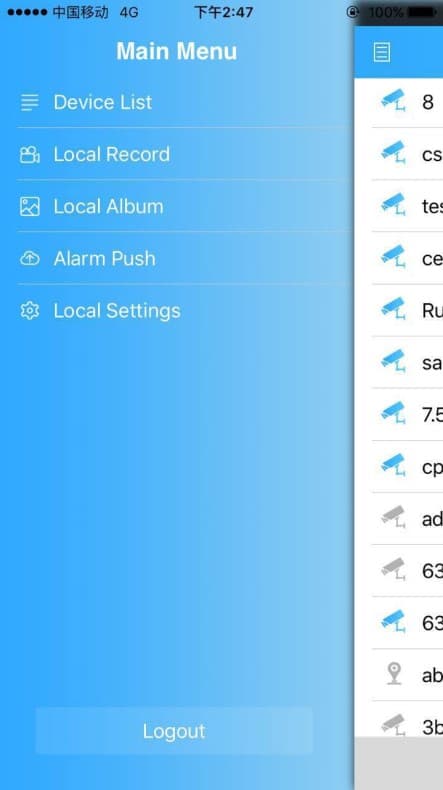
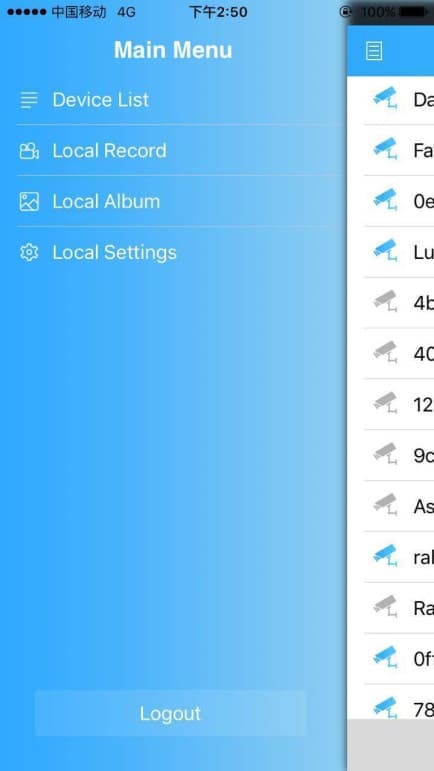
When you connect with a local or direct (device) login, the Main Menu contains Device List, Local Record, Local Album, Local Settings, and Logout. On Android, Alarm Push is also available with local login.
Availability by platform
Cloud Storage appears only on Android, with a cloud account. Alarm Push is available with a cloud account on both platforms, and also with local login on Android; on iOS, local and direct logins do not include Alarm Push.
Device List
Displays all of the devices you have added. Tap a device to open it. To add or manage devices, see Login and Add Device.
Local Record
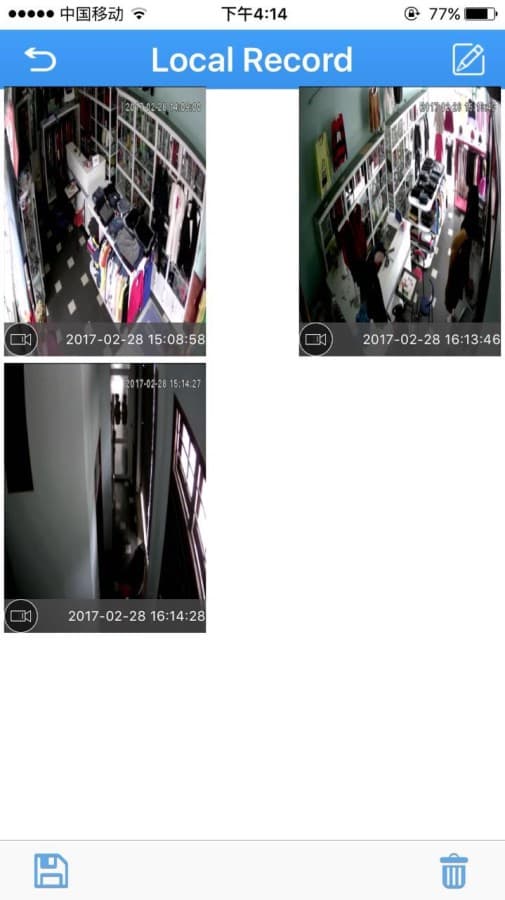
Local Record holds the videos you manually recorded or downloaded to the phone while previewing or playing back. These clips are stored in the phone's memory.
Storage required
Local recording needs available storage (a memory card) on the phone. If there are no local recordings, the list will be empty.
Play a recording
Open Local Record
Tap the menu button to open the Main Menu, then select Local Record to enter the list.
Tap a clip to play
The recordings appear as thumbnails labelled with their capture time (for example, 2017-02-28 15:08:58). Tap a clip to play it.
Delete a recording
Enter edit mode
In the Local Record list, tap the edit button  on the top right.
Select and delete
Tap the clips you want to remove, then tap the delete button  to delete the selected videos.
Save or exit
Tap the save button  to save a recording to the phone, or tap the exit button
  to leave edit mode. To go back, return to the Main Menu.
Notes
- Only existing recordings can be searched out; otherwise the Local Record list stays empty.
- While playing a clip, tapping the screen returns you to the previous view. When deleting a video or image, choosing Cancel returns you to the previous screen.
Local Album
Local Album contains the snapshots captured by the app while you were viewing monitoring video. Snapshots are shown as thumbnails; tap one to enlarge it. The other operations (selecting, deleting) are the same as for Local Record.
Alarm Push
Turn Alarm Push on to receive alarm notifications from your device on the phone. When an alarm is triggered, the phone receives a message and plays an alert sound. Use the toggle next to each device to enable or disable push for that device.
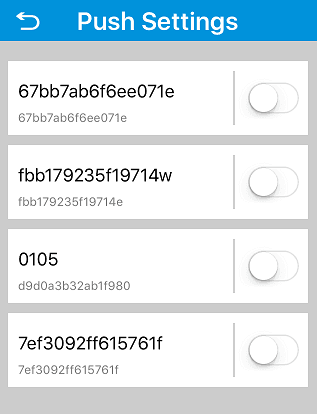
Availability
Alarm Push is available with a cloud account on both Android and iOS, and also with local login on Android. On iOS, local and direct logins do not include Alarm Push.
Cloud Storage
Tap Cloud Storage and then select a cloud-storage device to view its status. Relevant tips or results are shown for the selected device. Cloud Storage appears on Android when you sign in with a cloud account.
Local Settings
Local Settings shows the software version and lets you configure app behaviour.
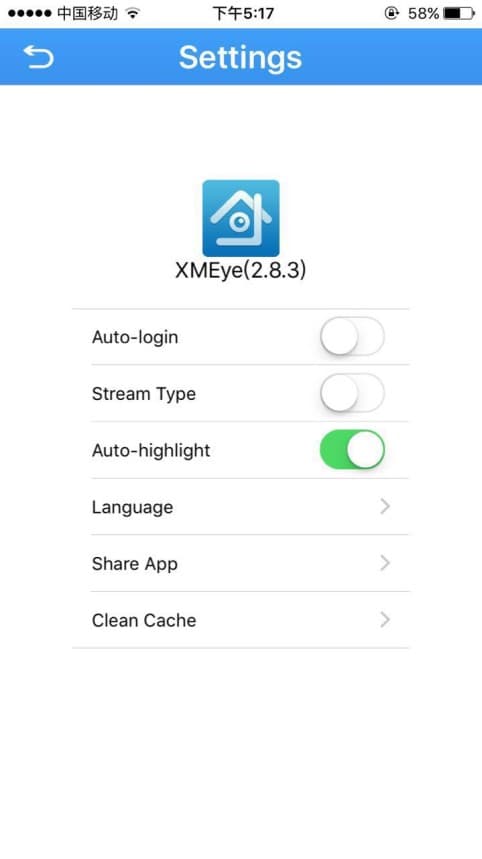
| Setting | Description |
|---|---|
| App version | Displays the installed XMEye version (for example, XMEye 2.8.3). |
| Auto-login | When on, the app automatically signs in to the current account on launch. |
| Stream Type | When on, the stream type switches to high definition (main stream). |
| Auto-highlight | When on, the app automatically adjusts the phone's backlight when entering live preview. |
| Hard decoding | When on, the app uses hardware decoding; when off, it uses software decoding. |
| Language | Switches the app language. See Switch Language. |
| Share App | Share the XMEye app with others. |
| Clean Cache | Tap to clear the app cache. |
| Help | Opens the operating instructions. |
| Check update | Checks whether a newer app version is available. |
Checking for updates
When a new version is found, a Version Upgrade prompt appears with a list of changes. Tap OK to download and install the new app, or No to skip the update. If you are already up to date, the app reports that this is the latest version.
Device upgrade
For device firmware downloads, you can choose one of three options: Never, Wi-Fi, or Auto.
Available options vary
The exact list of Local Settings options can differ slightly between app versions and platforms. Items such as Help, Check update, Device firmware download, and Hard decoding may not appear on every build.
Logout
Tap Logout to sign out and return to the login screen.