 XMEye Docs
Live View
How to start live video in XMEye on Android and iOS, plus a full reference of every on-screen live-view control button.
Once a device has been added, you can watch its cameras in real time from the XMEye Device List. This page explains how to start live video and describes every on-screen control available during preview.
Start Live View
Open the Device List
On the Device List, select the device (and channel) you want to watch.
Tap the device to enter the real-time preview. The live video starts playing automatically.
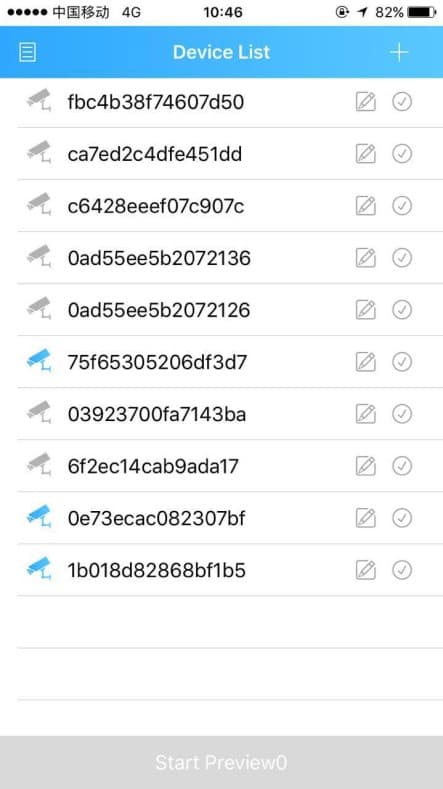
Choose a device, then tap Start Preview at the bottom of the page to open the Live Video interface.
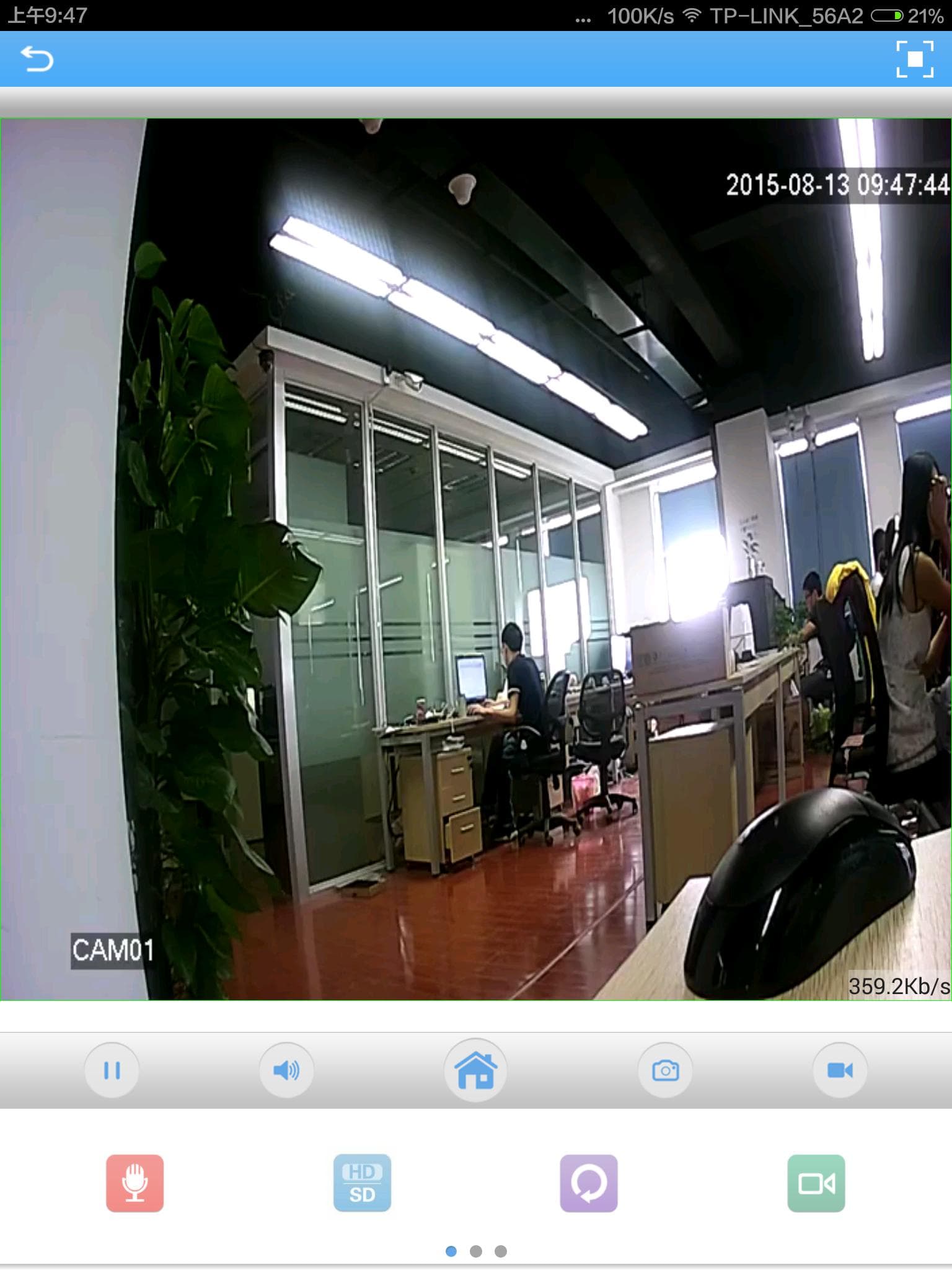
View the live video and controls
The live video plays in the preview window, with the control buttons arranged below it.
Tap the full-screen button  in the top-right corner to view the video in landscape full screen.
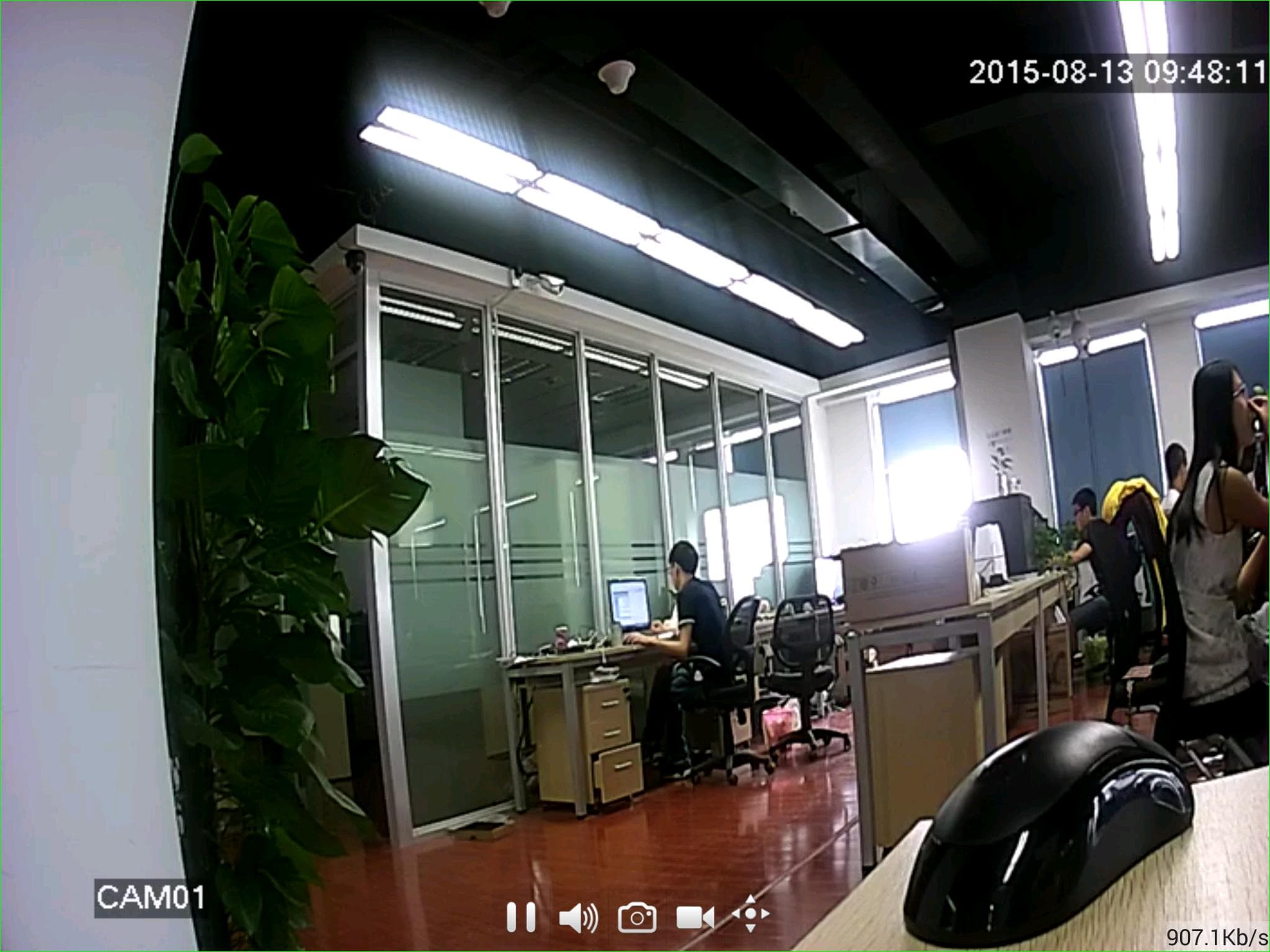
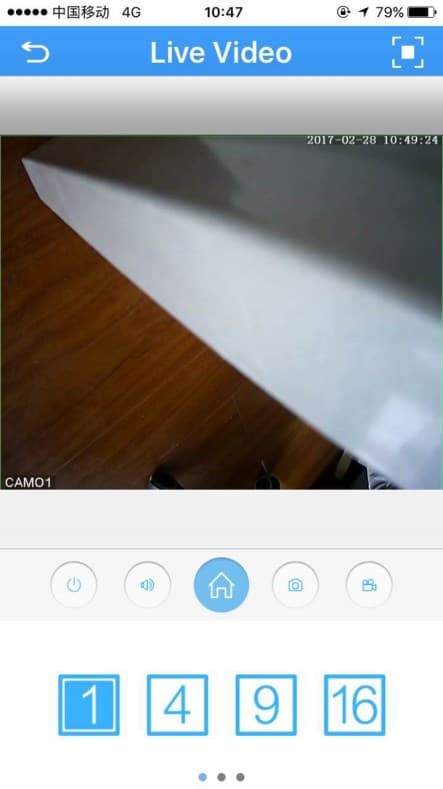
Live View Buttons
The set of control icons differs slightly between the Android and iOS apps. Use the tabs below to find the reference for your platform.
| Button | Function |
|---|---|
 | Back to main menu |
| Full screen |
    | Change window / channel layout |
 | Play / Stop |
 | Audio |
 | Device configuration |
 | Snapshot |
 | Recording |
 | Definition (HD / SD) |
 | Remote playback |
 | Intercom |
 | Refresh |
 | PTZ |
 | Zoom (magnify / shrink) |
 | Focus |
 | Iris |
| Button | Function |
|---|---|
 | Back to device list |
 | Full screen |
 | Close channel |
 | Audio |
 | Menu |
 | Snapshot |
 | Record |
 | Voice speaking (intercom) |
 | HD / SD switch |
 | Refresh |
 | Remote playback |
 | Window / channel number switch |
 | PTZ control |
 | Zoom in / out |
 | Focus |
 | Iris |
The PTZ, Zoom, Focus, and Iris controls are used to operate cameras that have pan/tilt/zoom and motorized-lens capabilities.
Next Steps
- To review footage stored on the device's hard disk, see Remote Playback.
- To talk to people near the camera, see Audio Intercom.
- To adjust device parameters, see Device Settings.